Friday, July 3, 2009

Bluetooth Mobile Phone Hack

This is hack that you can do on your friend's Bluetooth enabled mobile phones. By successfully implementing this hack,
  • You can dial any number from your friend's mobile phone.
  • You can change the silent mode.
  • Turn on ringing tone with out a call.
  • Turn on alarm sound.
  • Access Phone Book.
  • Access SMS.
  • Access Call Summery.
  • And many more depending on the compatibility of the friend's phones. Most of Nokia, Sony Ericsson and Motorola phones are supported.
Are you impressed?
Then this is what you need.
  • Two Bluetooth enabled phones. Obviously your phone and your friend's (victim's) phone. ;-)
  • Your phone must have Java support.
  • You need Super Bluetooth Java application installed.
  • Physical access to your friend's phone for one time or If your phone is already paired and your friend has already added you to trusted connections no problems.
This the way to do it.
  • If you haven't already paired two phones. Pair them and add your phone to trusted connections on the other mobile phone's paired devices list. If you don't do this, every time you try to connect your friends phone, he will get an alert asking to permission to connect.
  • Go to your applications.
  • Open Super Bluetooth application.
  • Select "Connect".
  • Select your friend's phone and connect.
  • And everything else is straight forward. ;-)
Have fun! :-D

BTW I found this video on YouTube demonstrating this hack. There are lot more videos like this have a look.

Tuesday, March 31, 2009

.NET/IIS URL Rewriting using URL Rewriter

You can easily rewrite URLs on .NET/IIS using free open source program called URL Rewriter.
If you don't know what is URL rewriting is, it is simply the mechanism which give out search engine friendly URL like example.com/products/psp instead of example.com/products.aspx?product=psp
Whats actually happening is, there is only products.aspx file exists and it takes query sting product.
But by using URL rewriting, it passes the psp as the query string to the products.aspx file.
So what user see is example.com/products/psp but (s)he is actually looking at the example.com/products.aspx?product=psp.

So Interested? ;-)
If so this is how it will be done,

<configsections>
<section name="rewriter" requirepermission="false" type="Intelligencia.UrlRewriter.Configuration.RewriterConfigurationSectionHandler, Intelligencia.UrlRewriter" />
<configsections>

<system.web>
<httpmodules>
<add type="Intelligencia.UrlRewriter.RewriterHttpModule, Intelligencia.UrlRewriter" name="UrlRewriter" />
<httpmodules>
</system.web>

<rewriter>
<rewrite url="/products/(.+)" to="/products.aspx?tag=$1" />
</rewriter>

  • Now if you test this on Visual Studio, you will see that URL rewriting is working.
  • But, If you deploy this on ISS it will not work.
  • The trick is,
  • Right Click on the web site on ISS manager.
  • Goto the "Home Directory" tab.
  • Select configurations.
  • Select .asax extension.
  • Click "Edit" button.
  • Copy the executable path and click the "Cancel" button.
  • Now click on the "Insert" button.
  • Paste the previously copied executable path on the text box.
  • Make sure that "Verify that file exists" is unchecked.
  • Click Ok
  • Close the web site properties dialog.
  • And thats it. ;-)
You can use reguler expressions, IF clause, UNLESS clause etc. URL handling. You can find out lot about it from URL Rewriter Refence.

Sunday, February 1, 2009

Do the bulk updates using Microsoft SQL Server Correctly.

This is the scenario:
You have a table called tblItem with fields,
itemID, itemTitle, itemDescription, itemImage and itemPrice.
itemID is set as the primary key or it is the field that can be used to uniquely identify a given row.
And this table is populated with 1000 records.
Imaging that you have to change the price of about 700 items.
And your data entry team supplied you a Microsoft Excel spreadsheet with itemID and new itemPrice.
So you have to update the tblItem table, without effecting other 300 items.

Before you start updating:
Make sure that itemID is unique in tblItems and the spreadsheet, otherwise you will get an error.

How to do the update:
  • Import data from the spreadsheet and create a new table called tblTemp
  • The fields will be tempID and tempPrice
  • Run this query:
UPDATE tblItem
SET itemPrice = (SELECT tempPrice FROM tblTemp WHERE tempID = itemID)
WHERE itemID IN (SELECT tempID FROM tblTemp);

With this query you can make sure that other records which aren't present in the spreadsheet will not get updated and only the records present in the spread sheet get update.

Words of caution:
  • Don't forget to delete the temporary table.
  • It is always a good idea to make backup.

Friday, January 30, 2009

Easy way to read color on web site

When you have to find out color of certain image or text in a website, you may have wasted time by making screen shot of the web site and opening it in a Image Editor using its Eyedropper, Color Picker to find out the color. But with ColorZilla, color on website is just a one click away. ColorZilla is a Firefox Add-on.


Features
  • Find out color of any place on the web browser. (Including Favicon area, menu, toolbars etc.)
  • Get color code in both RGB format and Hex format (with hash notation ex. #FFFFFF).
  • Shows the name of active CSS style.
  • Web page zooming.
  • Advance color palette.
  • Configurable color representation format.
  • Configurable Keyboard Shortcut (Default ColorZilla keyboard shortcut is set to Shift + Esc).
  • Integration with other popular Firefox add-ons and more...
How to Install ColorZilla?
  • Open Firefox.
  • Go to Tools menu & select Add-ons.
  • Click on Get Add-on icon.
  • Type ColorZilla on the text box and press enter.
  • Select ColorZilla on the search results and click Add to Firefox button.
  • Firefox will download and install the add-on.
  • Restart Firefox.
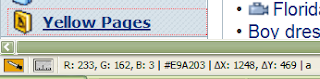
  • ColorZilla icon will be available at the left hand corner of the status bar.
How to Use ColorZilla?

How to find color with ColorZilla?
  • Click on ColorZilla icon in the left hand corner of the status bar or press the ColorZilla keyboard shortcut (Default ColorZilla keyboard shortcut is Shift+Esc).
  • Now where ever you move your mouse point on the browser window status bar will be showing the color code in both RGB format and with hash notation plus the name of the active CSS style.
  • Click on the screen or click on the ColorZilla icon or press the ColorZilla keyboard shortcut.
  • Right click on the ColorZilla icon, and select any copy color code format to copy the selected color.
How to zoom web pages will ColorZilla?
  • Right click on ColorZilla icon.
  • Go to Zoom.
  • Select any zoom level from 20% to 1000%.
How to change ColorZilla color picker size?
  • Right click on ColorZilla icon.
  • Go to Options.
  • Select Color picker.
  • Select the color picker that you want.
How to Change the ColorZilla keyboard shortcut?
  • Right click on ColorZilla icon.
  • Go to Options.
  • Select Change Eyedropper Shortcut.
How to find more information about ColorZilla?